Table of Contents
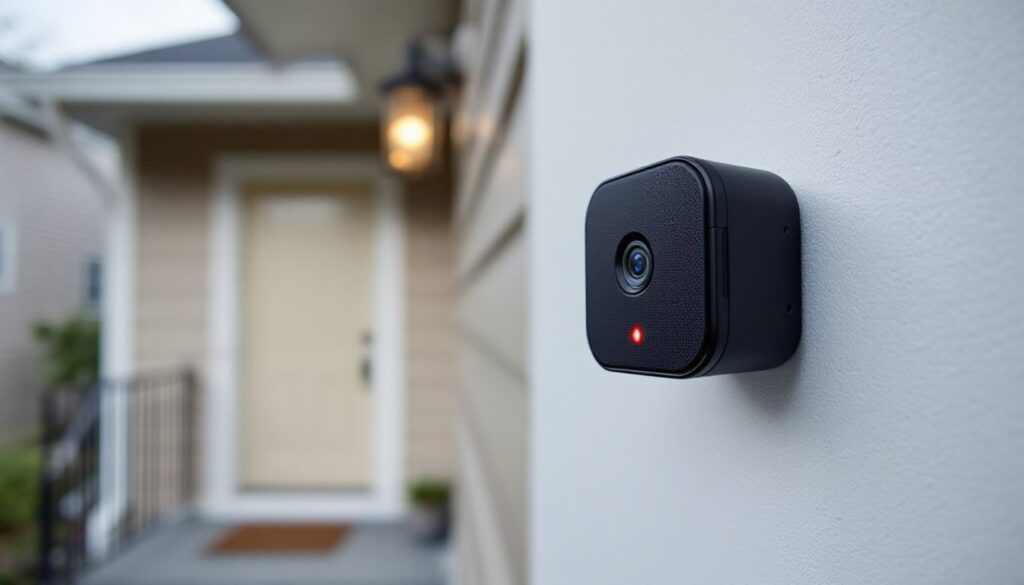
ToggleA blinking red light on your Blink camera isn’t just an annoyance, it’s a signal that something’s keeping your system from doing its job. Whether you’re trying to monitor your front porch or keep an eye on the garage, that flashing red indicator means the camera isn’t recording or communicating properly with your network. The good news? Most causes are straightforward and don’t require professional help. This guide walks through exactly why your Blink camera is flashing red and how to get it back online, step by step, with tools you already have.
Key Takeaways
- A blinking red light on your Blink camera indicates lost connection to the Sync Module or Wi-Fi network, not a hardware failure—most causes are fixable without professional help.
- Weak or unstable Wi-Fi signal is the most common culprit; Blink cameras require a consistent 2.4 GHz connection and may lose signal if mounted far from your router or behind dense materials.
- Replace batteries with fresh Energizer Ultimate Lithium AA batteries simultaneously, and verify the Sync Module LED shows solid blue and green to confirm stable internet and camera connections.
- Resync your Blink camera by pressing and holding the reset button until you see a blue blinking light, then complete pairing through the app within 30–60 seconds.
- If resyncing doesn’t resolve the issue, perform a factory reset by holding the reset button for 20–30 seconds until the LED flashes red and blue, which clears corrupted pairing data.
Why Is Your Blink Camera Blinking Red?
When a Blink camera shows a red light, whether it’s blinking or solid, it’s communicating a specific problem with connectivity, power, or setup. Understanding what triggers that red indicator helps you diagnose faster and skip unnecessary troubleshooting steps.
A blinking red light typically means the camera has lost connection to the Sync Module or your Wi-Fi network. The camera is powered on and functional, but it can’t communicate with the hub that manages recording schedules, motion alerts, and cloud uploads. In contrast, a solid red light usually appears during initial setup or when the camera is actively trying to connect but can’t establish a stable link. Both scenarios point to network or pairing issues rather than hardware failure.
Common Causes of the Red Blinking Light
Several common issues trigger the red blinking light on Blink cameras. Knowing which one applies to your situation saves time and frustration.
Weak or unstable Wi-Fi signal is the most frequent culprit. Blink cameras require a consistent 2.4 GHz Wi-Fi connection (they don’t work with 5 GHz networks). If your camera is mounted far from your router or behind thick exterior walls, metal siding, or stucco with wire mesh, the signal may drop intermittently.
Low or dead batteries also cause connectivity problems. When battery voltage drops below a certain threshold, the camera can’t maintain a stable connection to the Sync Module, even if it still powers on. Blink cameras use two AA lithium batteries (non-rechargeable models) or a rechargeable battery pack, depending on the model.
Sync Module disconnection happens when the hub itself loses internet access or power. If the Sync Module’s LED shows anything other than solid green, the cameras can’t connect, and you’ll see red lights across all units in that system.
Firmware glitches or failed updates occasionally interrupt communication. Blink pushes firmware updates automatically, and if an update is interrupted or doesn’t install correctly, the camera may show a red blinking light until it’s resynced or reset.
Physical obstructions or interference from other wireless devices (baby monitors, cordless phones, microwave ovens) can disrupt the 2.4 GHz band and cause intermittent dropouts, especially in densely populated areas with overlapping networks.
How to Troubleshoot a Blink Camera Blinking Red
Troubleshooting a Blink camera with a red blinking light follows a logical sequence: verify the network, check power, and then address pairing. Start with the simplest fixes before moving to resyncing or resetting.
Check Your Internet Connection and Wi-Fi Signal
First, confirm your Sync Module has a stable internet connection. Check the LED on the front of the Sync Module:
- Solid blue and solid green: Internet and camera connections are good.
- Blinking green: Internet is connected, but cameras aren’t synced.
- Blinking blue: No internet connection.
If the Sync Module shows blinking blue, your router or modem may have lost connection. Restart your router by unplugging it for 30 seconds, then plug it back in and wait for it to fully reboot (usually 2–3 minutes). Once the router is back online, unplug the Sync Module, wait 10 seconds, and plug it back in.
Next, check Wi-Fi signal strength at the camera location. Open the Blink app, tap the camera name, and look at the Wi-Fi signal bars in the camera settings. If you see one or two bars, the signal is weak. To improve coverage:
- Move the Sync Module closer to the center of your home or nearer to the cameras.
- Use a Wi-Fi extender or mesh network node to boost the 2.4 GHz band in dead zones.
- Ensure your router is set to broadcast 2.4 GHz (some newer routers default to 5 GHz only).
- Reduce interference by moving the Sync Module away from electronics or metal surfaces.
According to smart home device reviews, placement and signal strength are among the top reasons wireless cameras lose connection, especially in older homes with dense building materials.
Replace or Recharge Your Camera Batteries
Low battery voltage is a common trigger for the blinking red light on Blink cameras. Even if the app shows battery life remaining, cold weather or frequent motion alerts can drain batteries faster than expected.
For non-rechargeable models (Blink Outdoor, Indoor Gen 1 and Gen 2, XT, XT2), use Energizer Ultimate Lithium AA batteries. Standard alkaline batteries don’t perform well in temperature extremes and may cause intermittent power issues. Replace both batteries at the same time, mixing old and new batteries reduces performance.
To replace batteries:
- Remove the camera from its mount (push the mounting tab or twist counterclockwise, depending on the model).
- Open the battery compartment on the back.
- Remove the old batteries and note the polarity markings.
- Insert two fresh lithium AA batteries, ensuring correct orientation.
- Close the compartment and remount the camera.
After replacing batteries, the camera should automatically reconnect to the Sync Module within 30–60 seconds. If the red light persists, proceed to resyncing.
For rechargeable models (Blink Mini, Outdoor 4, Doorbell), connect the USB power cable or charging cable to a wall adapter (5V/1A minimum). Let the camera charge for at least 30 minutes before checking the indicator light. Experts at Digital Trends note that rechargeable camera batteries often need a full charge cycle to reset internal power management after deep discharge.
If you’re using a Blink Mini (wired-only model) and see a red light, check that the USB cable is fully seated and the power adapter is plugged into a working outlet. Test the outlet with another device to rule out a tripped circuit or bad receptacle.
Resync Your Blink Camera with the Sync Module
If your internet connection is stable and batteries are fresh but the camera still shows a blinking red light, you’ll need to resync it with the Sync Module. This process re-establishes the wireless link between the camera and the hub.
Before starting, make sure the Sync Module is powered on and showing a solid blue and green LED. If it’s not, resolve the Sync Module connection first (see the previous section on internet and Wi-Fi checks).
To resync a Blink camera:
- Open the Blink app and tap the + icon or Add Device.
- Select Blink Wireless Camera (or your specific model).
- Choose the Sync Module you want to pair with from the list.
- The app will prompt you to press the reset button on the camera. This small button is usually located near the battery compartment or on the side of the camera body (consult your model’s manual if you can’t locate it).
- Press and hold the reset button until you see a blue blinking light (usually 5–10 seconds). The blue light indicates the camera is in pairing mode.
- Release the button and wait. The app will search for the camera and complete the pairing process (this takes 30–60 seconds).
- Once paired, the app will show a Connected message, and the red light should stop blinking.
If the camera doesn’t enter pairing mode (no blue blinking light), remove the batteries, wait 10 seconds, reinsert them, and try the reset button again. For cameras with a physical power switch, toggle it off and on before attempting the reset.
After resyncing, test the camera by triggering motion or viewing the live feed in the app. If you still see a red blinking light, perform a factory reset by holding the reset button for 20–30 seconds until the LED flashes red and blue alternately. This clears all settings and lets you set up the camera from scratch.
According to guidance from Tom’s Guide, firmware conflicts or corrupted pairing data are occasional causes of persistent red lights, and a factory reset resolves most of these edge cases.
If resyncing and factory reset don’t resolve the issue, contact Blink support or check for known outages. Rarely, a hardware defect (failed Wi-Fi radio or faulty circuit board) may require warranty replacement, but that’s uncommon with Blink cameras still under the typical two-year warranty period.
Conclusion
A blinking red light on a Blink camera usually signals a fixable connectivity or power issue, not a hardware failure. Start by checking your Wi-Fi signal and Sync Module connection, replace or recharge the batteries, and resync the camera if needed. Most red light problems clear up in under 10 minutes with these steps, getting your home security system back to reliable monitoring without a service call.